



A new feature in Windows 11 snipping tool allows you to capture windows screen recording natively. At this moment, Microsoft is testing this feature. Well, it means no more relying on third-party apps and Xbox Game Bar for content creators.
How to Capture windows screen recording prematurely with a beta build?
There are two ways to capture windows screen recording using the windows 11 snipping tool:
- Make yourself a part of the Windows Dev channel to test.
- Install the new tool on stable builds via the MSIXBundle package.
The Windows Screen Capture Screen Recording Capabilities:
- The new snipping tool supports MP4 (H.264) format.
- You can do a screen recording at 30FPS.
- A simplified application with no controls for recording microphones, audio devices, system sounds, or webcams.
Getting the Best Windows Screen Recording feature natively on Windows 11
Apple macOS has a lesson for all of us. It says native is the only best solution. While there are many windows capture screen recording tools available in the market, this native snipping tool addon is the best.
This article has detailed instructions on how to screen record on windows 11. If you find the snipping tool buggy, you can move to the older version by following our guide. It is important to note that the new Snipping tool is still in beta, so there are still a lot of bugs in it. We experienced crashes, errors, and the application refusing to record the screen.
How to screen record on windows 11 (Capture Windows Screen) using Snipping Tool:
Here are the steps you should follow if you want to record your screen using the Snipping Tool:
- Start by downloading the new Snipping Tool by clicking here. It is safe to use, according to McAfee Anti-virus too.
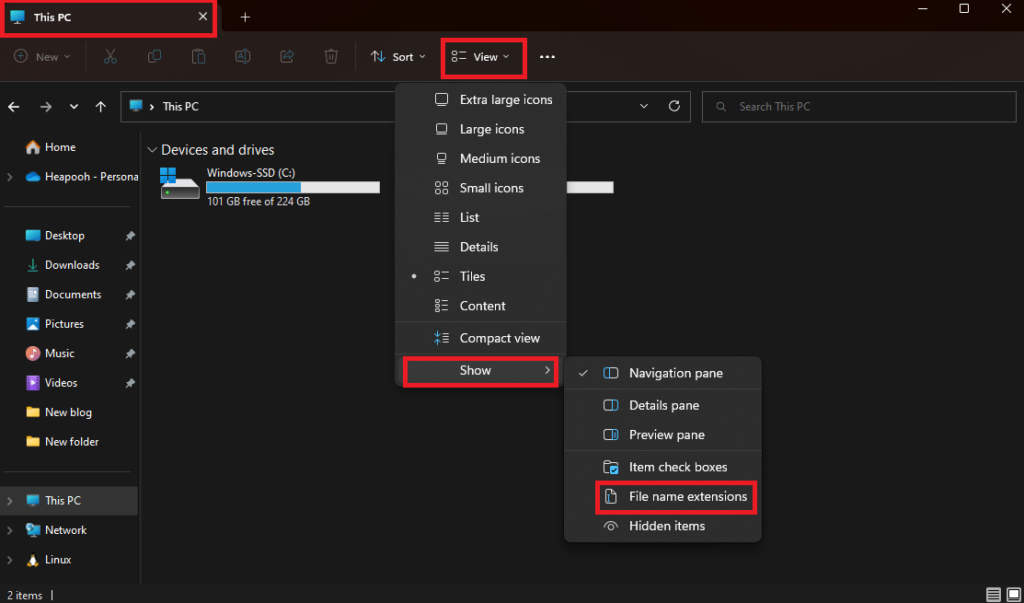
- Then, modify Windows 11 File Explorer to show file extensions. You can do this by navigating to the top menu bar (click View -> Show -> File name extensions).
- Then rename it so that it ends with the .msixbundle extension.
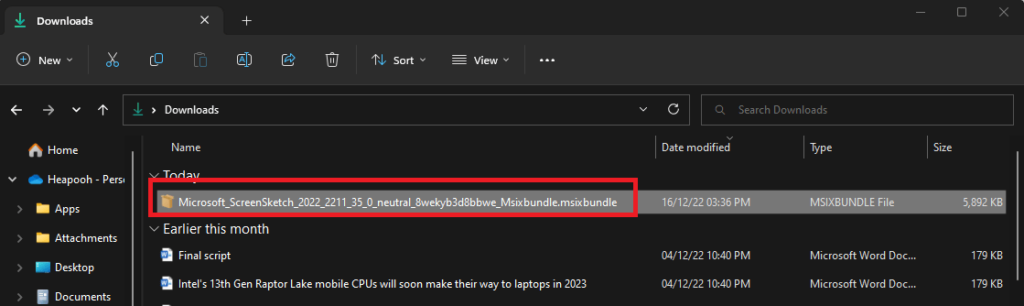
- Afterward, double-click on the downloaded file, and the installer will launch automatically. The system detects an older version of the Snipping Tool. The Microsoft Store App offers to update your Snipping Tool, as shown here.’
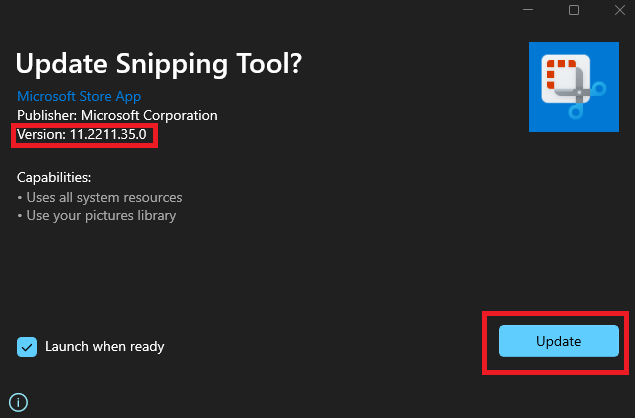
- On your Windows 11 PC, click “Update,” and the new Snipping Tool will install.
- Navigate to the three dots on the Snipping Tool -> Settings -> About section. You will find the newer version of the Tool to be 11.2211.35.0.
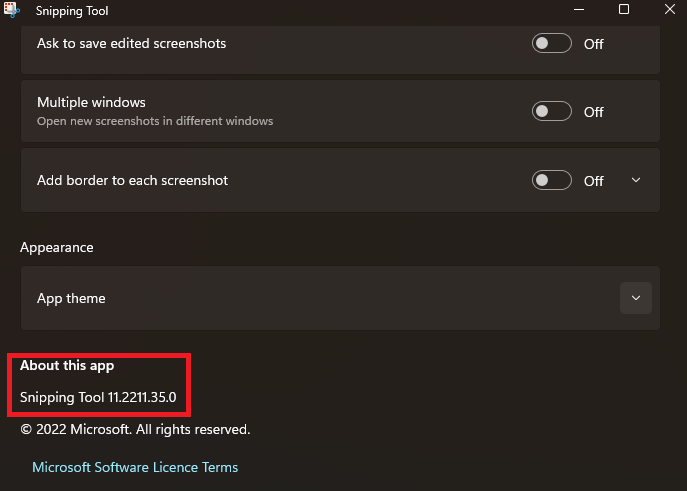
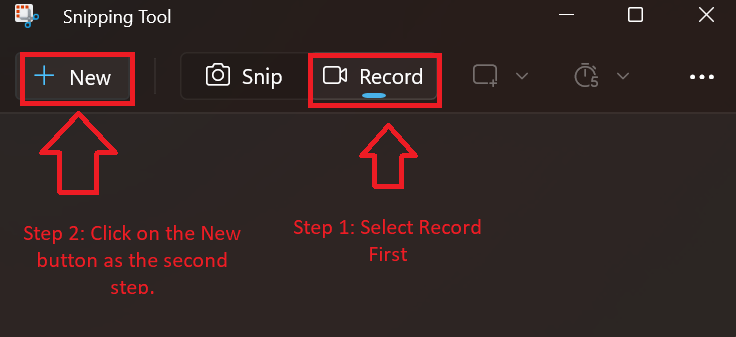
- Go back to the main screen of your Snipping Tool and select the Record button. You can now click on the New button to record a screen.
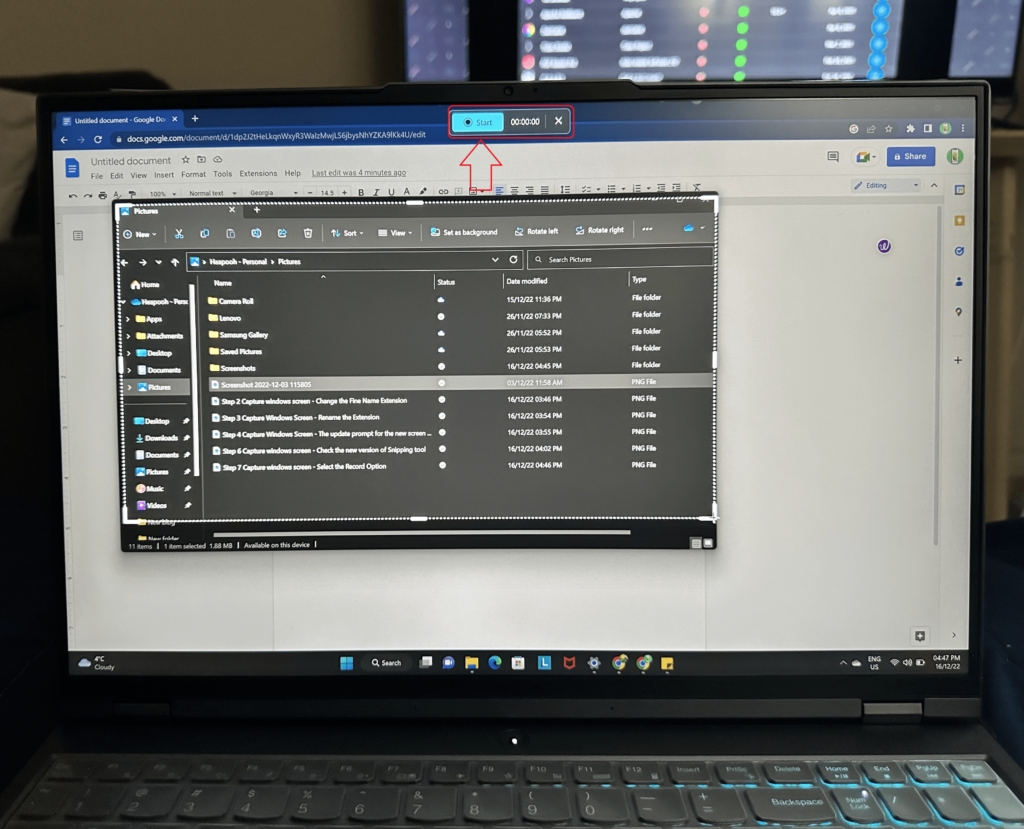
- It takes about three seconds before you can select the area you want to record. To begin recording, click on the Start button.
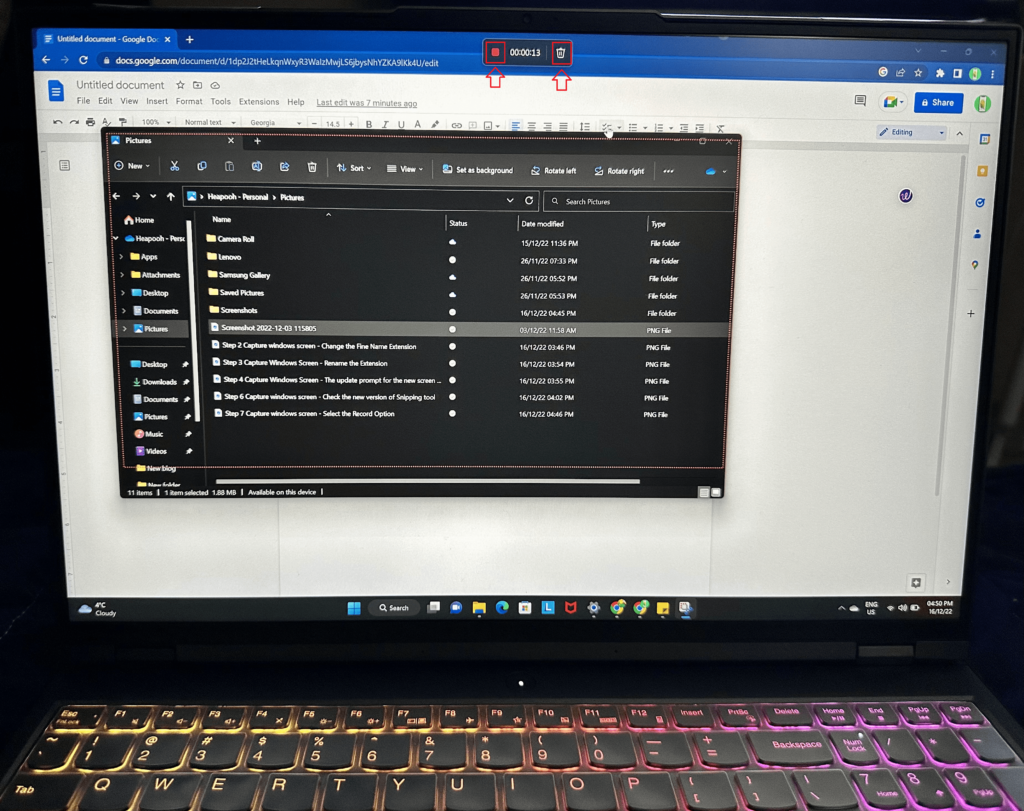
- To stop the recording, click on the red button icon on the top. You have the trash icon to discard the recording altogether.
- Once you finish the recording, the application takes you to the snipping tool home screen. You can save it using the save button icon. You can save it to your preferred location.

- You can enjoy the recording and play it with Windows 11 File Explorer (Windows 11 Media Player).
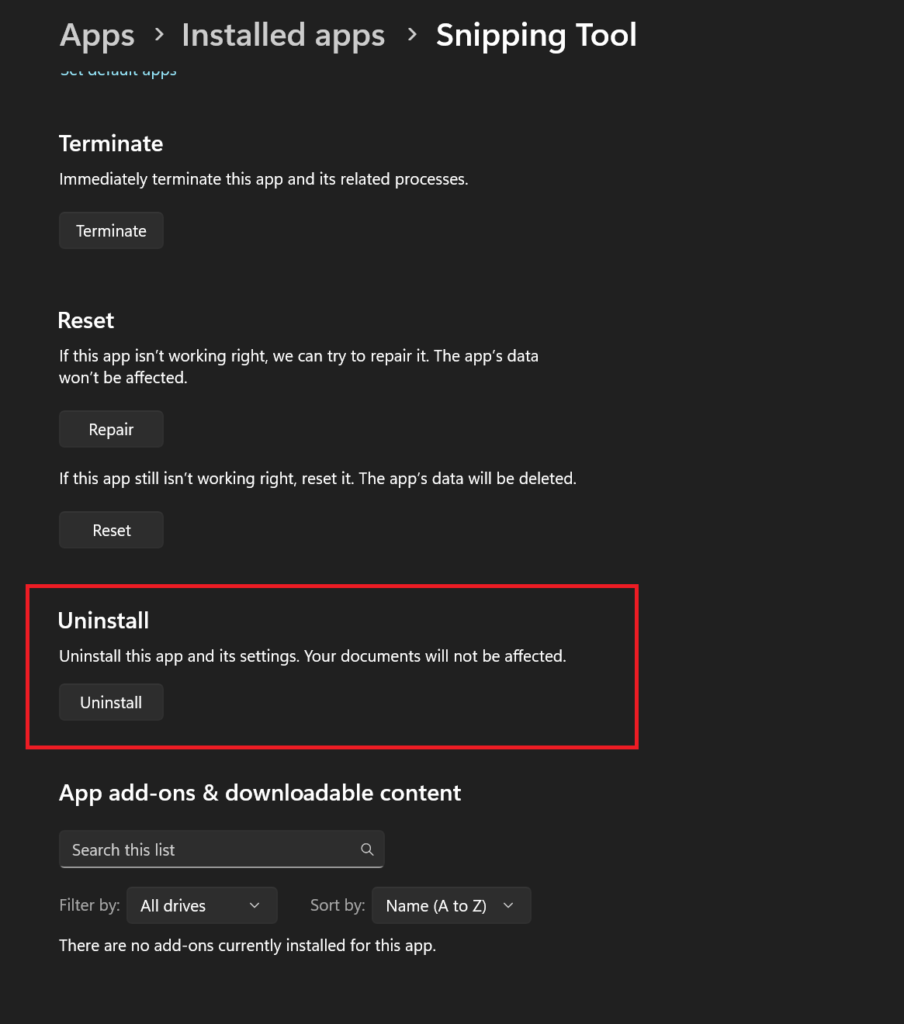
Snipping Tool: Uninstall the latest version and replace it with the older version
- Right-click on “Snipping Tool” in the Start Menu. Next, select “App settings.”

- Please scroll down and click on the Uninstall button. This will remove the Snipping Tool from your system.
- You can re-install the Snipping Tool again from the Microsoft Store. For direct access to the Microsoft Store listing, click here.
- The new installation will give you the stable old version of Snipping Tool with no screen recording functionality.
Screen recording in windows 11 (Capture Windows Screen)
The Windows Screen Capture Recording is miles away from perfection on Windows 11. This tool may be enhanced with new features or kept simple. A simple approach is better since it’s a free tool that doesn’t need to be complicated. Gaming fans can use Windows Xbox GameBar as well as other free and paid tools.
Also, do not forget to read our following Articles:
- OnePlus 10T Plastic body frame breaks in half – Deceptive in 2022
- Is GTA 6 coming out soon? We speculated on the 2024 hype!
- How to enable Windows 11 Taskbar on Windows 10?
- How to enable Nearby Sharing on Windows 11 – AirDrop alternative for Windows users!
- Android 13 Update List Tracker – Amazing 2022 Guide
- How to clear iPhone RAM? Amazing 2022 Guide