



How to clear iPhone RAM is a common question among enthusiasts. Honestly, it varies according to the model of the iPhone. You can follow this guide for detailed instructions on the iPhone RAM reset.
What does clearing ram do on iPhone?
iPhones are known to equip lower RAM in comparison to Android smartphones. iOS/iPad OS does an outstanding job at memory management, but not always. Sometimes you may feel a lag on your iPhone. Clearing the RAM will help you to get a lag-free experience in this case.
What are the benefits of clearing RAM on iPhone?
Before explaining the whole process on How to clear iPhone RAM, you may want to know a few benefits of it.
A few benefits are as below:
- You do not need to turn off/ turn on the iPhone to clear off the RAM.
- You will get a better lag-free experience.
- More RAM means better gameplay.
- More RAM means a better refresh rate on the newer iPhones.
There is a misconception that clearing the app cards will free up RAM space. On Apple iPhones, it doesn’t work this way. To clear off the RAM, you must perform a hard reset.
The settings are different. The answer depends on whether your iPhone has a touch ID button.
Most asked Google questions How to clear iPhone RAM (iPhones with physical button):
| 1. | How to clear iPhone 5s RAM |
| 2. | How to clear RAM iPhone 8 plus |
| 3. | How to clear RAM iPhone 7 |
| 4. | How to clear RAM iPhone SE |
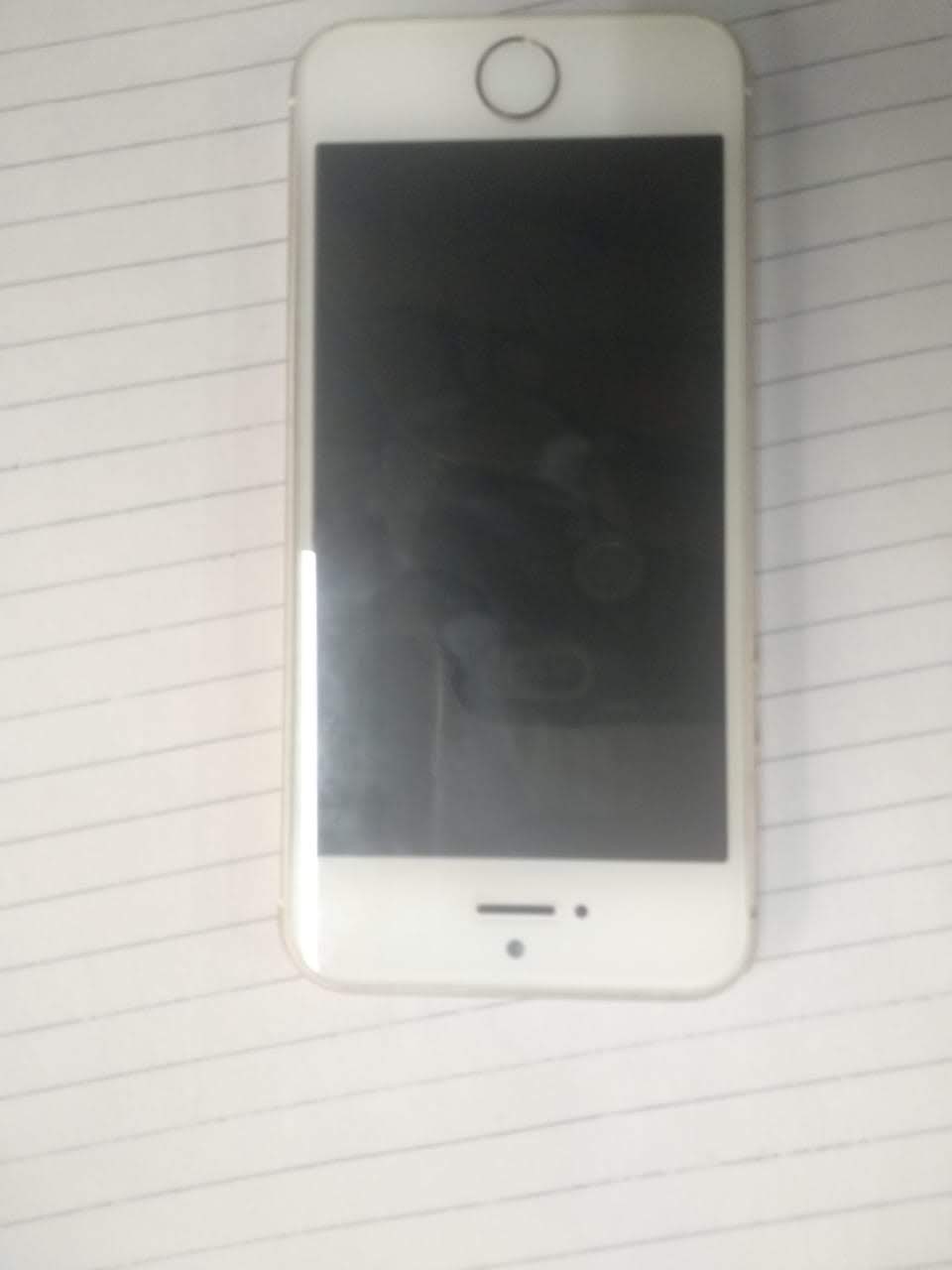
Here are a few steps on How to clear iPhone RAM (iPhone6/7/8/SE):
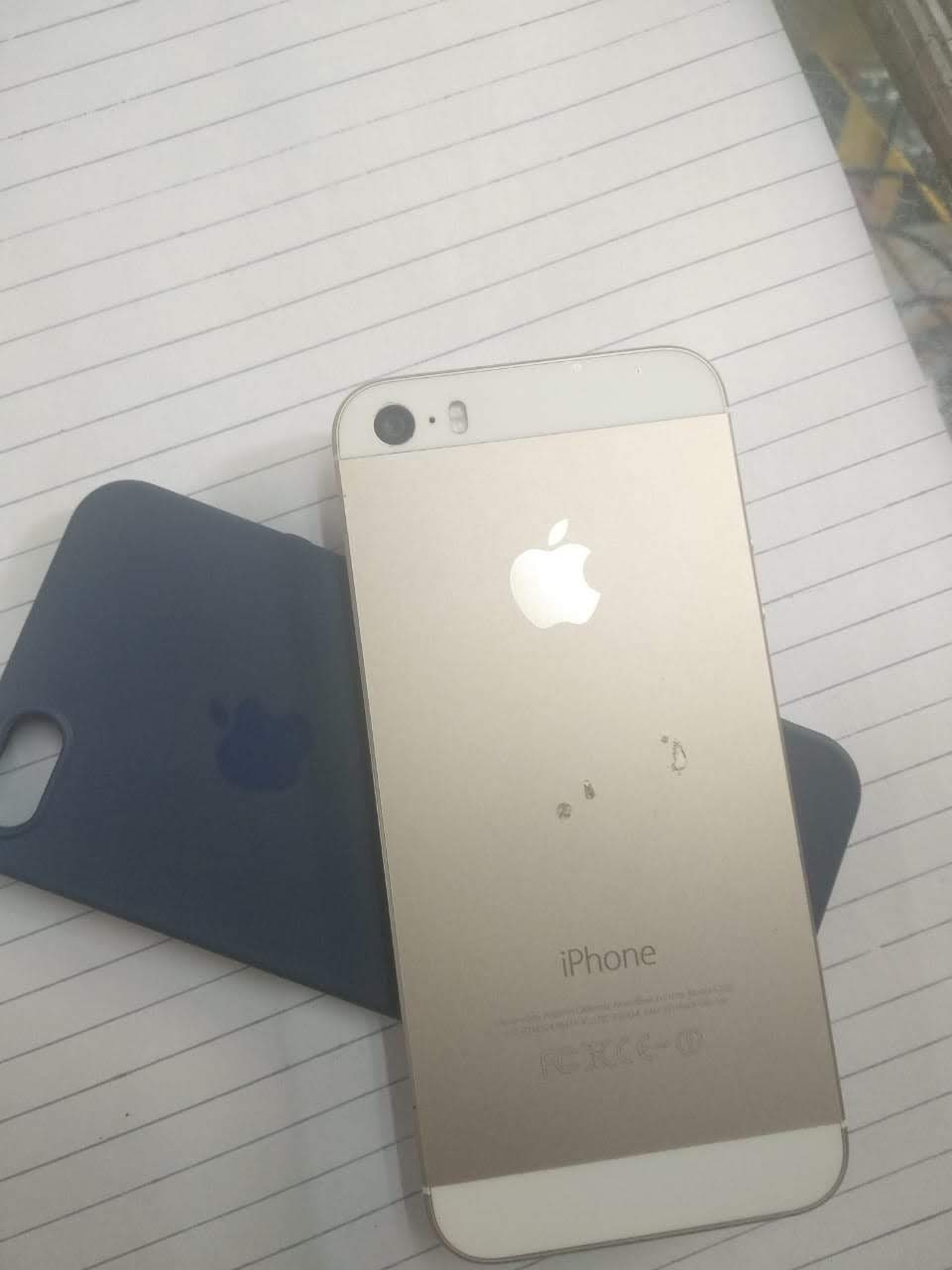
- Press and hold the Sleep / Wake button.
- Release after you see the slide to power off option.
- Release the Power button.
- For about five seconds, hold down the Home button
- When your iPhone’s screen flashes blank, it is an indication that you’ve cleared its RAM.
- Please enter your password if prompted.
Most asked Google questions How to clear iPhone RAM (iPhones without a physical button:
| 1. | How to clear RAM on iPhone X |
| 2. | How to clear RAM on iPhone 12 |
| 3. | How to clear RAM iPhone 12 pro max |
| 4. | How to clear RAM on iPhone 13 |
| 5. | How to clear RAM on iPhone XR |
Here are a few steps on How to clear iPhone RAM (iPhone X/XR/11/12/13):
To clear RAM on an iPhone without a physical Home button, you need to enable Assistive Touch (Later, you’ll see why).
How to enable Assistive touch on iPhone?
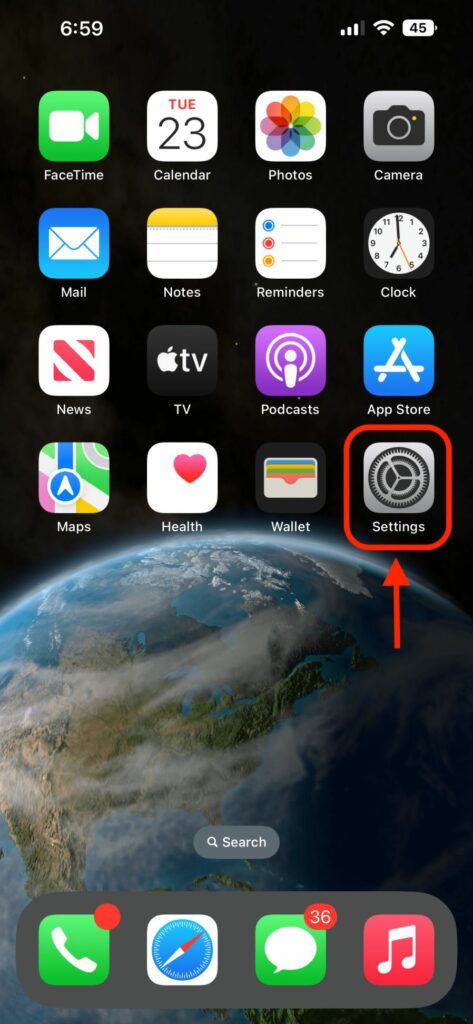
- Navigate to the Settings on your iPhone > Tap Accessibility.
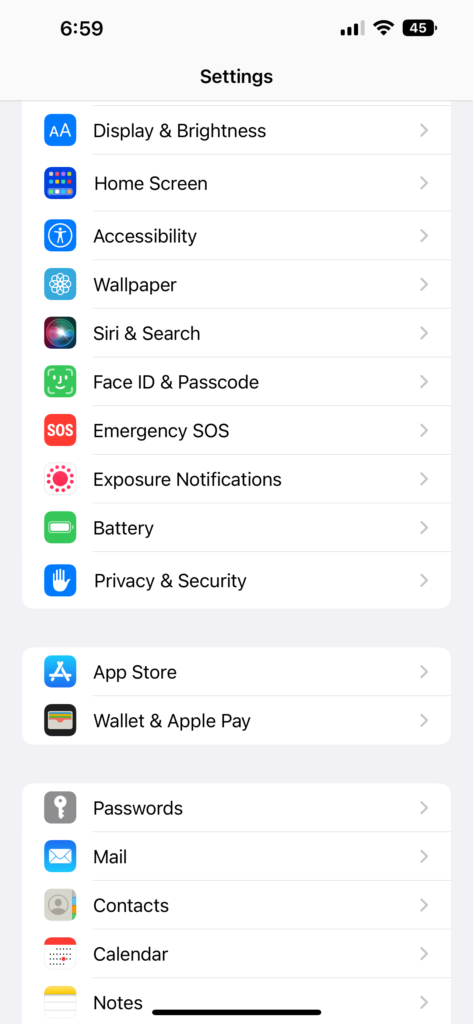
- Now, Select Touch > AssistiveTouch.
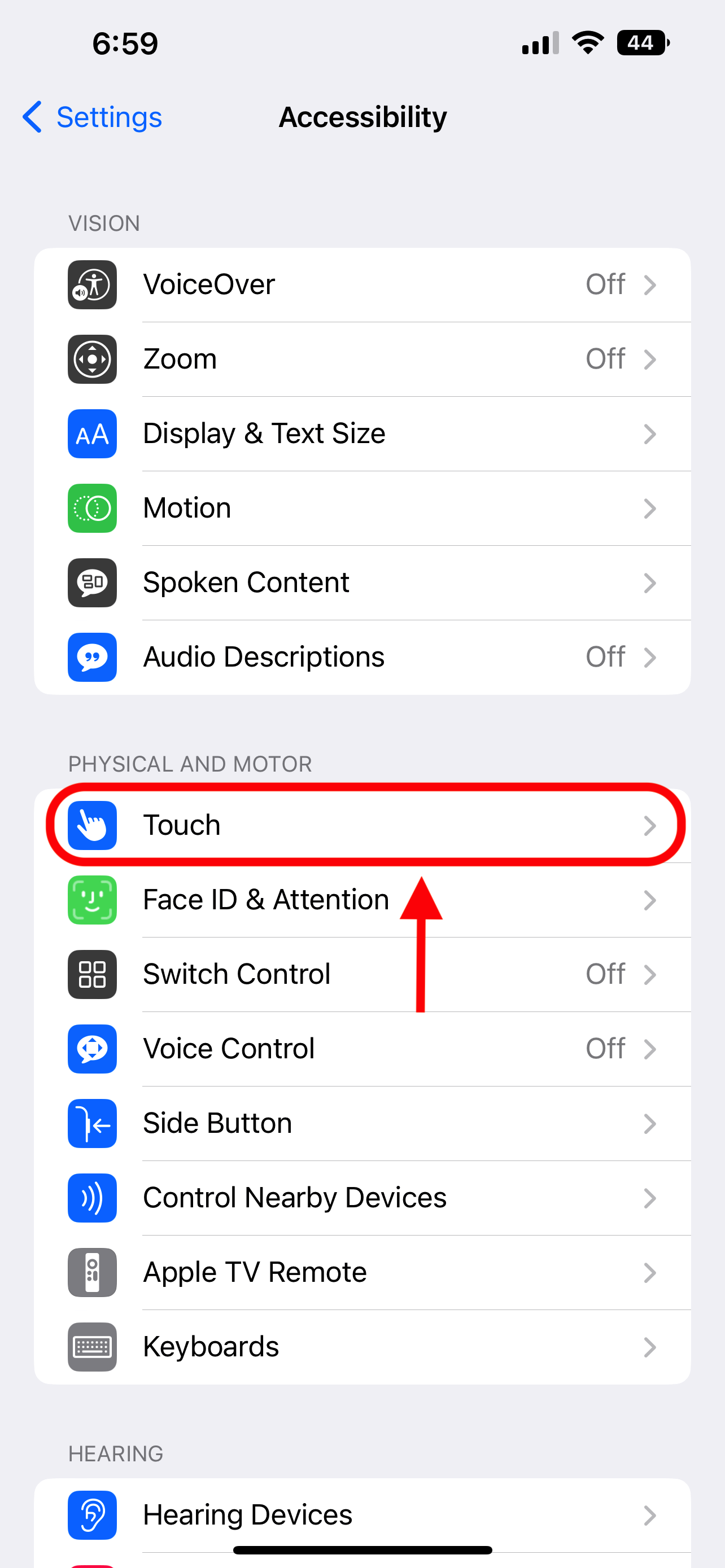
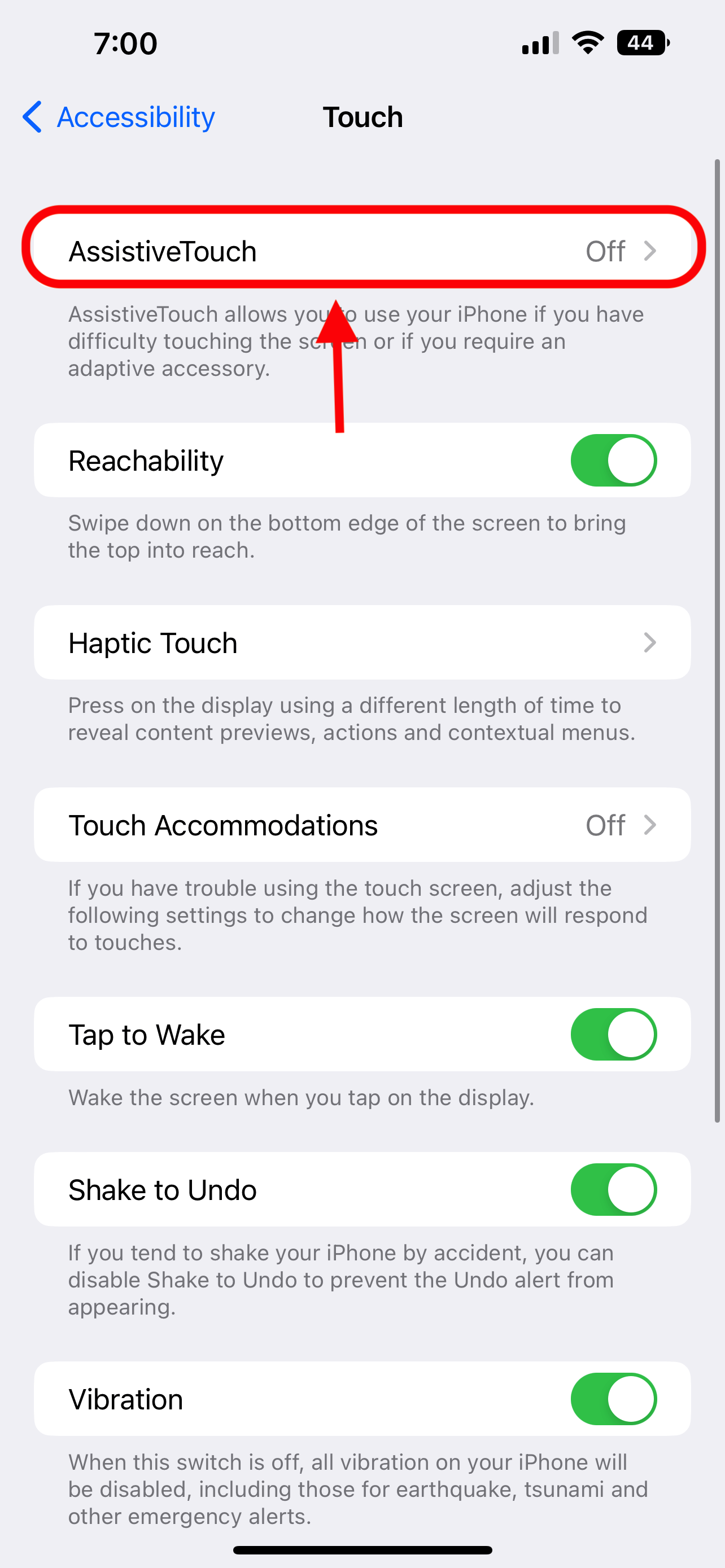
- The first Option is AssistiveTouch. Pressing the option takes you to a new screem. Toggle AssistiveTouch on
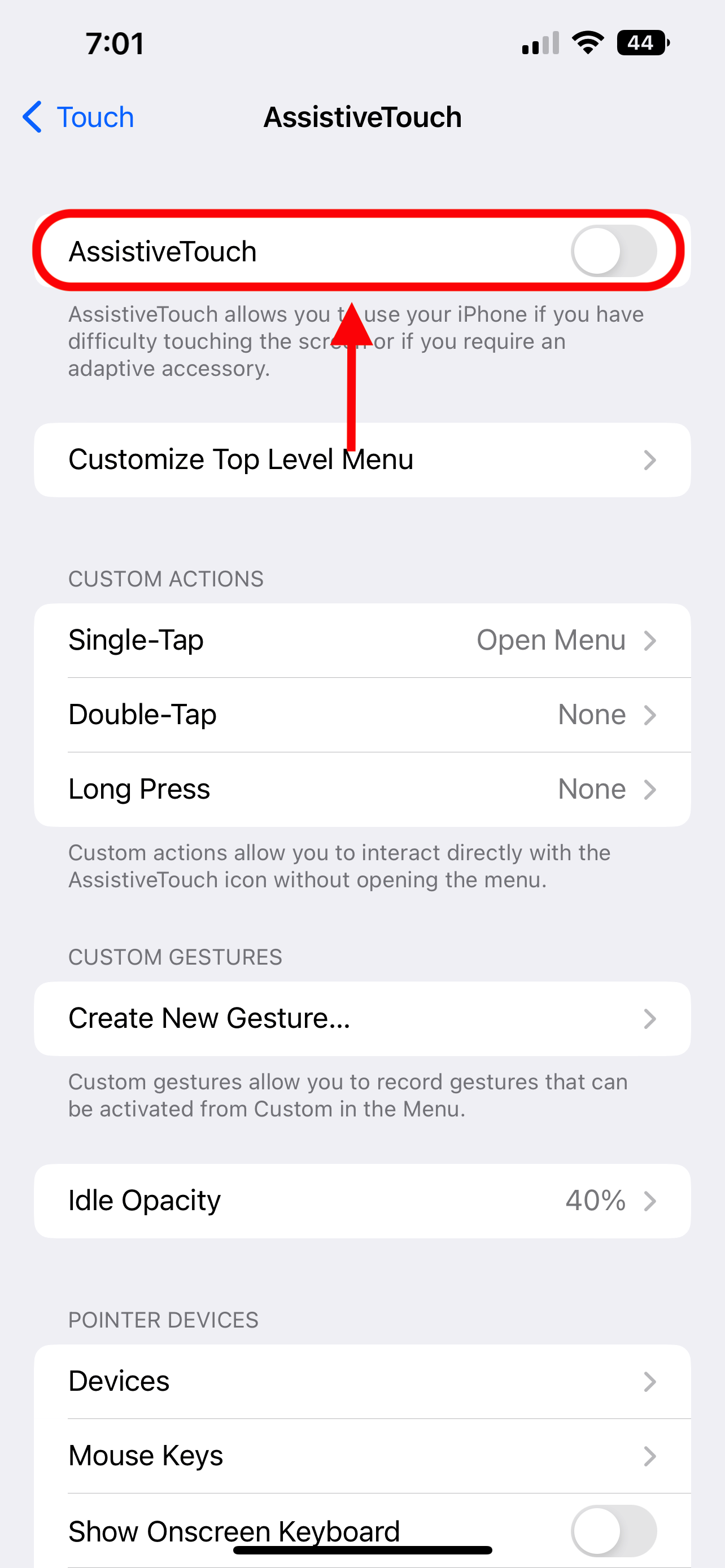
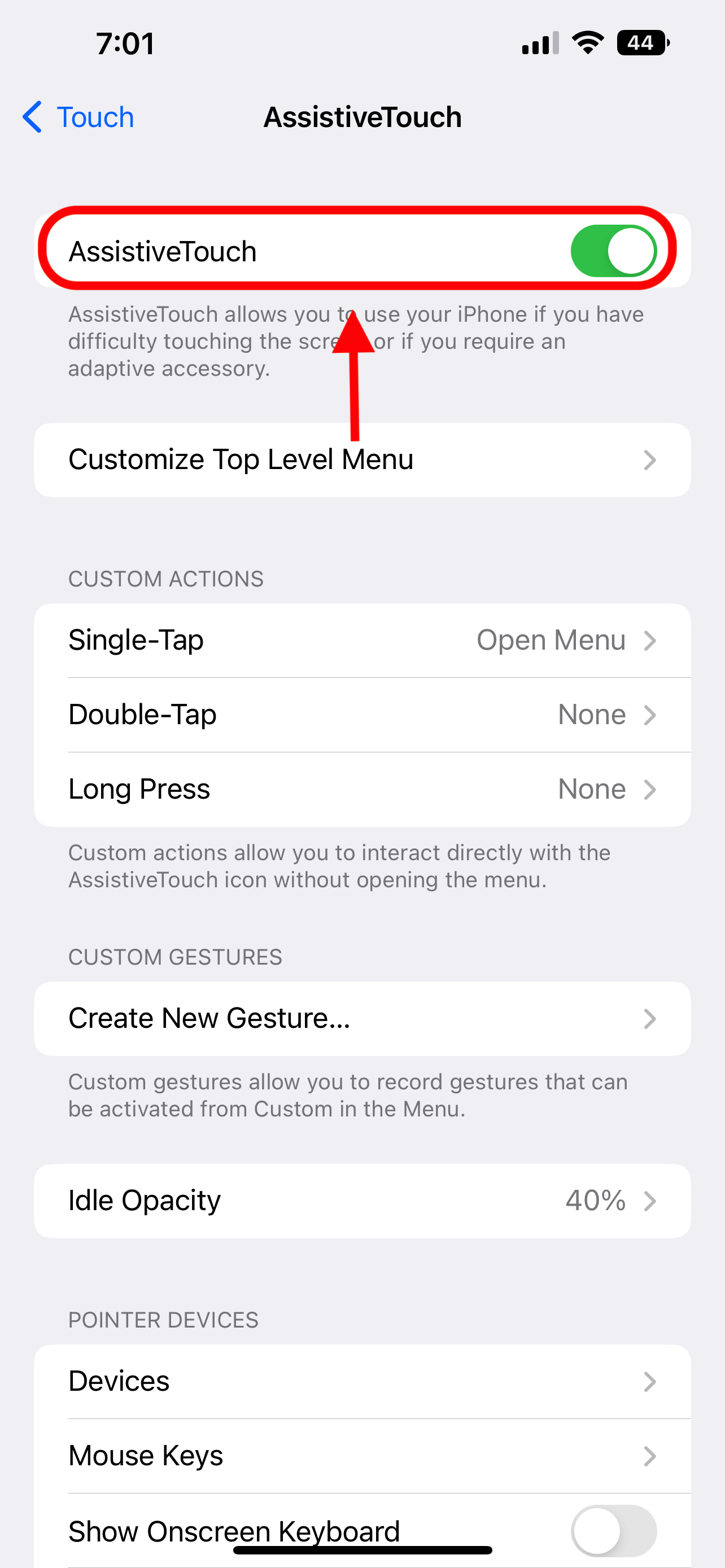
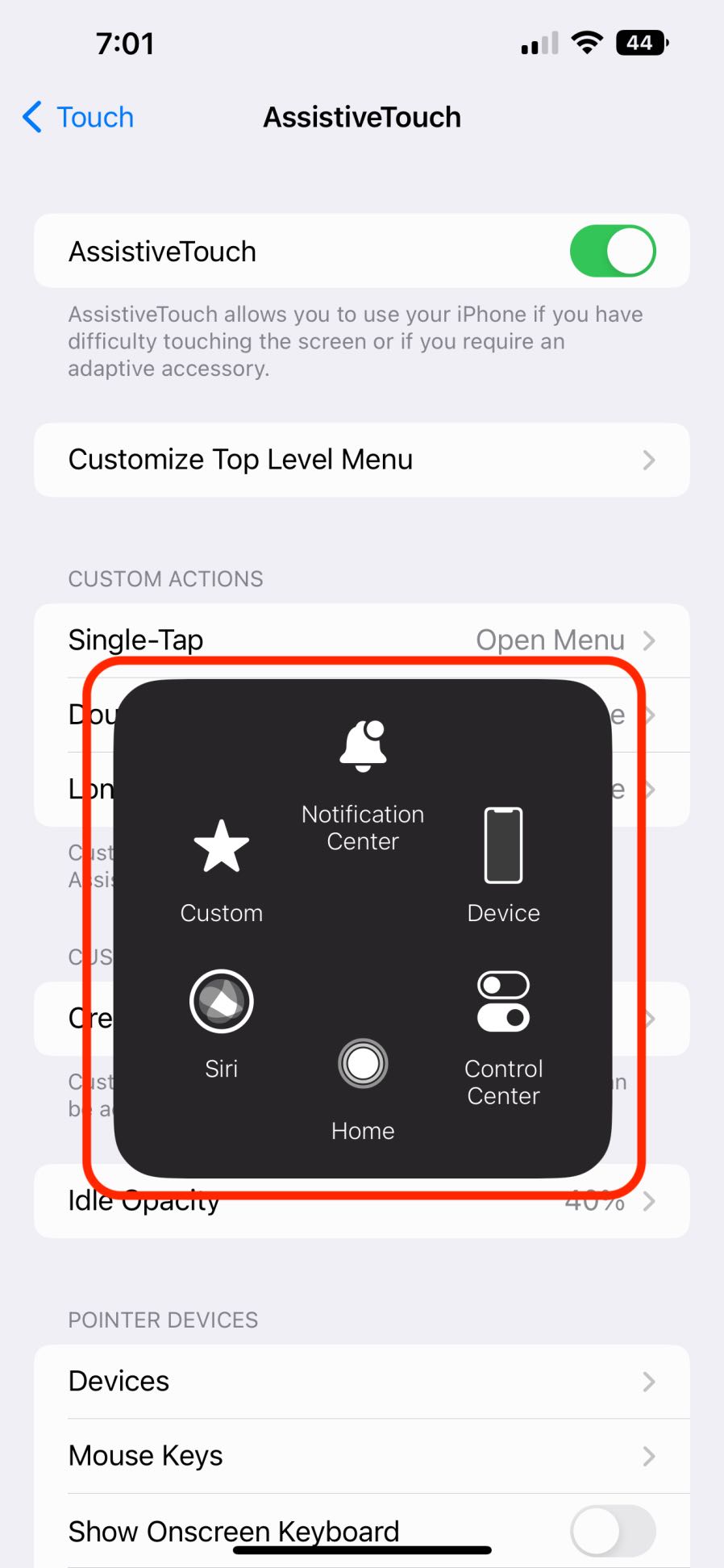
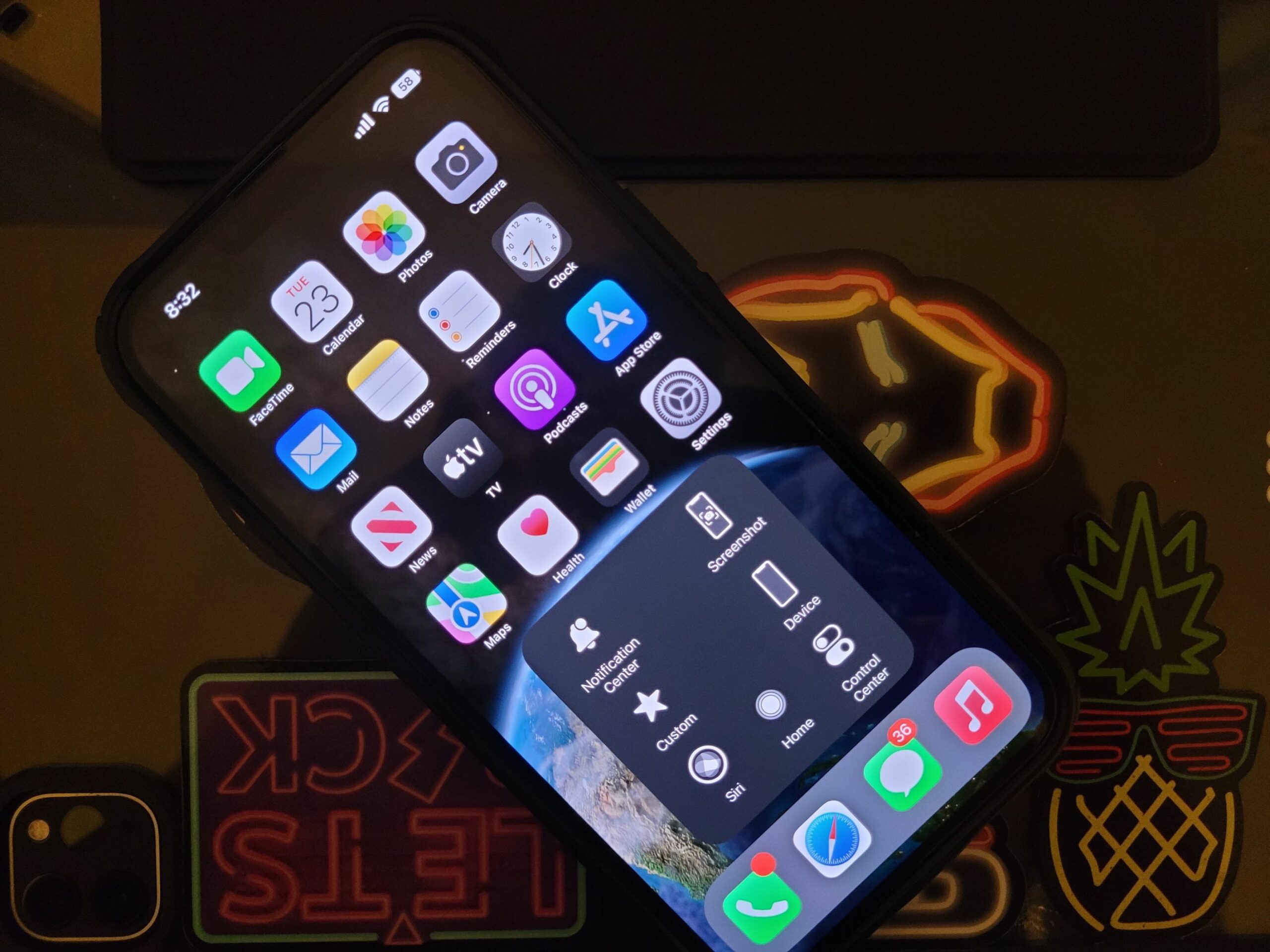
You will see a circular icon on your iPhone screen now. You can use it and customise it for different actions.
Follow these steps after you have assistive touch on:
Coming to the main question – How to clear iPhone RAM
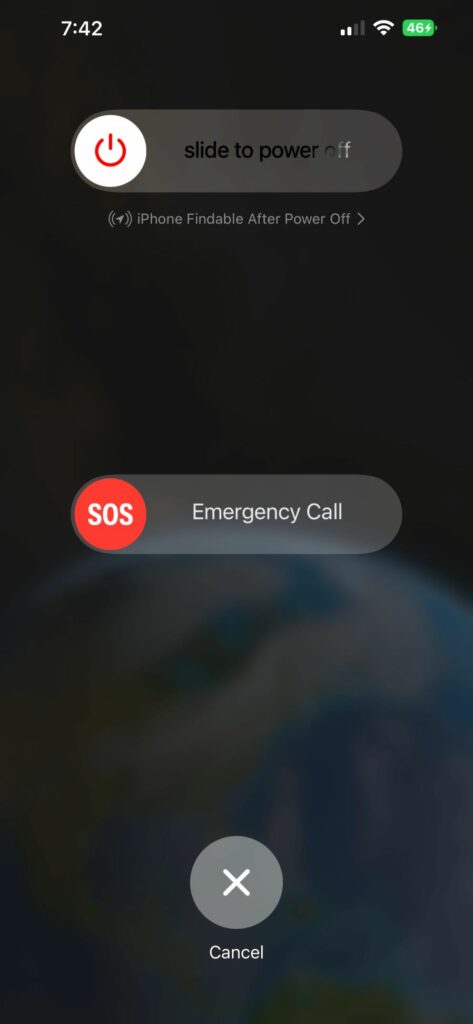
- Select General from the Settings menu > Tap on the shutdown button.
- Another way to access the shut down menu is by pressing the volume up or down button and then holding them together with the lock button for a few seconds.
- Tap on the AssistiveTouch icon once.
- It will show up the Assistive touch Menu.
- Finally, hold down the virtual Home button in AssistiveTouch. As soon as the iPhone’s screen flashes back to the Lock screen, you can leave it.
Congratulations, the RAM on your iPhone is now clear. Remember that as now all the applications are force shut off, opening the applications again will eat some of the battery juice. It is one of the reason why Apple does not allow a direct way of clearing App memory.